Ghost mannequin photos: see the result in Clothing Studio
Compare a garment photo with the Ghost Mannequin result, then follow the steps to create and check your own clothing product image.
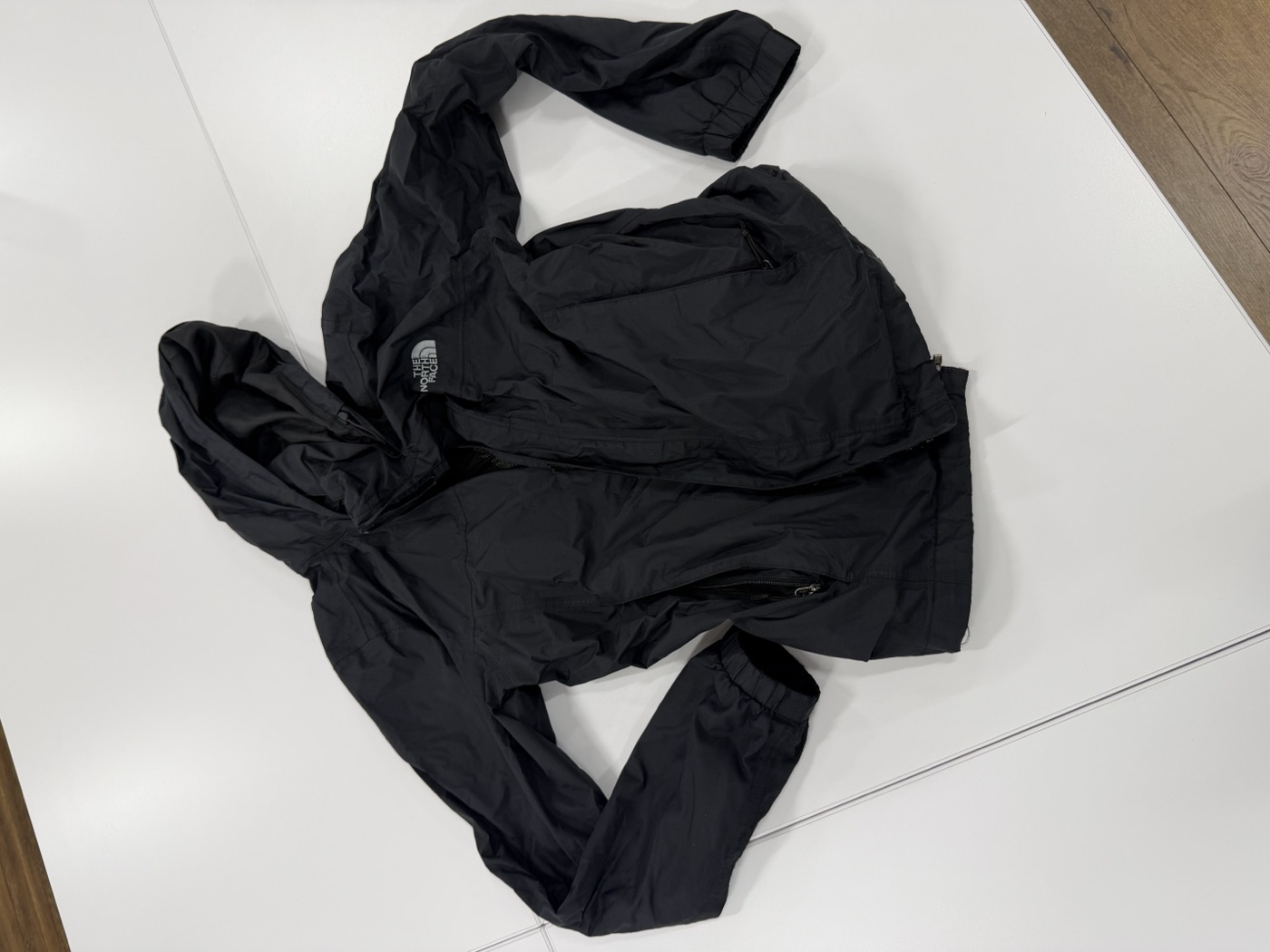
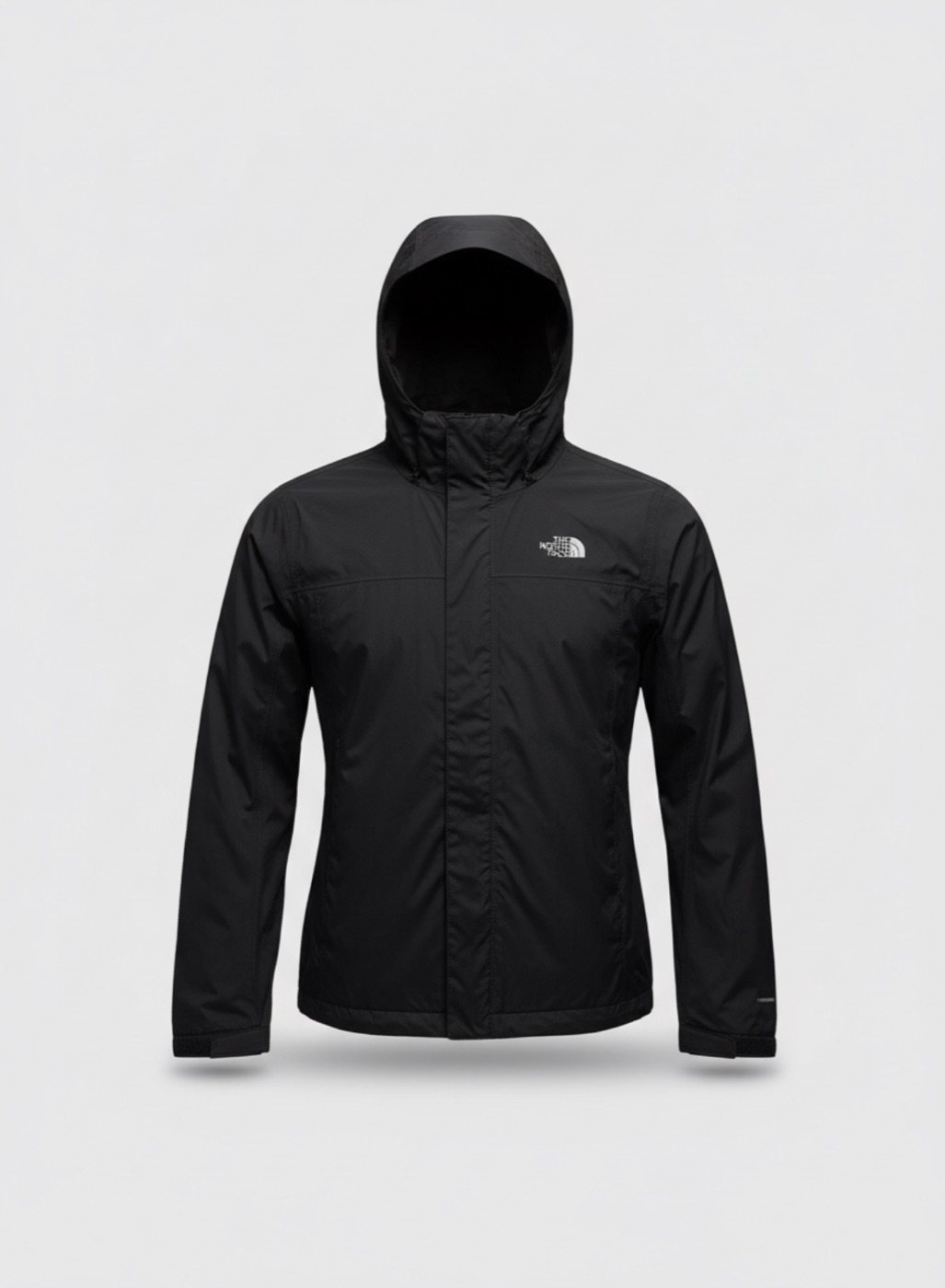
Quick answer
A ghost mannequin image shows the shape of a garment without a visible model or mannequin. Clothing Studio can generate that presentation from a garment photo, but the result still needs to match the item you actually sell.
Step by step
Prepare the garment and lighting
Use a clean, evenly lit garment photo with the complete outline visible. Keep sleeves, hems and straps separated from the background. Photograph details such as labels or embroidery separately when they matter to the buyer.
Select Ghost Mannequin
Import your garment photo and choose Ghost Mannequin in the style selector. For this presentation, keep the whole garment in frame. Use the same lighting and crop across items in your catalog.
Inspect the details at full size
Compare the generated neckline, sleeve openings, seams, closures and hem with the source. Check patterns, logos and text especially carefully. Regenerate or use the original when the AI invents an opening or changes a distinguishing feature.
Prepare the listing image
Export the reviewed result, keep a consistent crop and leave enough space around the garment. Include real detail photos in the listing so the generated presentation is not the only evidence of texture or construction.
From a flat garment photo to an invisible mannequin
The original jacket is photographed on a table. Ghost Mannequin changes its presentation to a filled-out silhouette on a clean background. Look at the hood opening, cuffs, zipper and chest logo: this is a generated presentation, so a cleaner shape still needs a detail check.
Before you use the result
AI presentation is not a fitting simulation or proof of fabric drape on a customer. Do not use a generated image that changes the product color, cut, branding or condition.
Explore the app