Remove wrinkles from clothing photos: before and after
See the Just Unwrinkled result in Clothing Studio and learn how to smooth distracting creases while checking fabric, seams and logos.
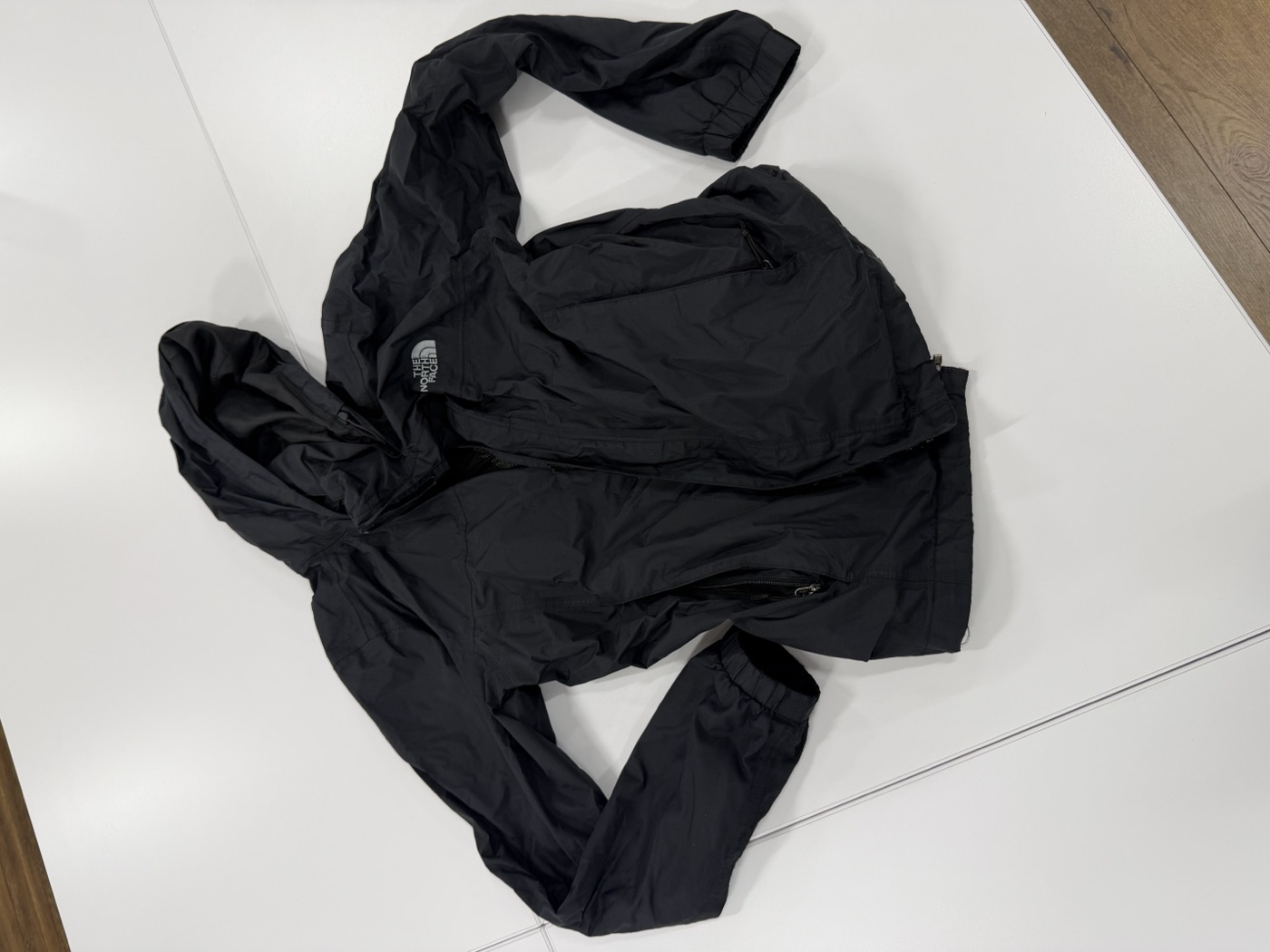
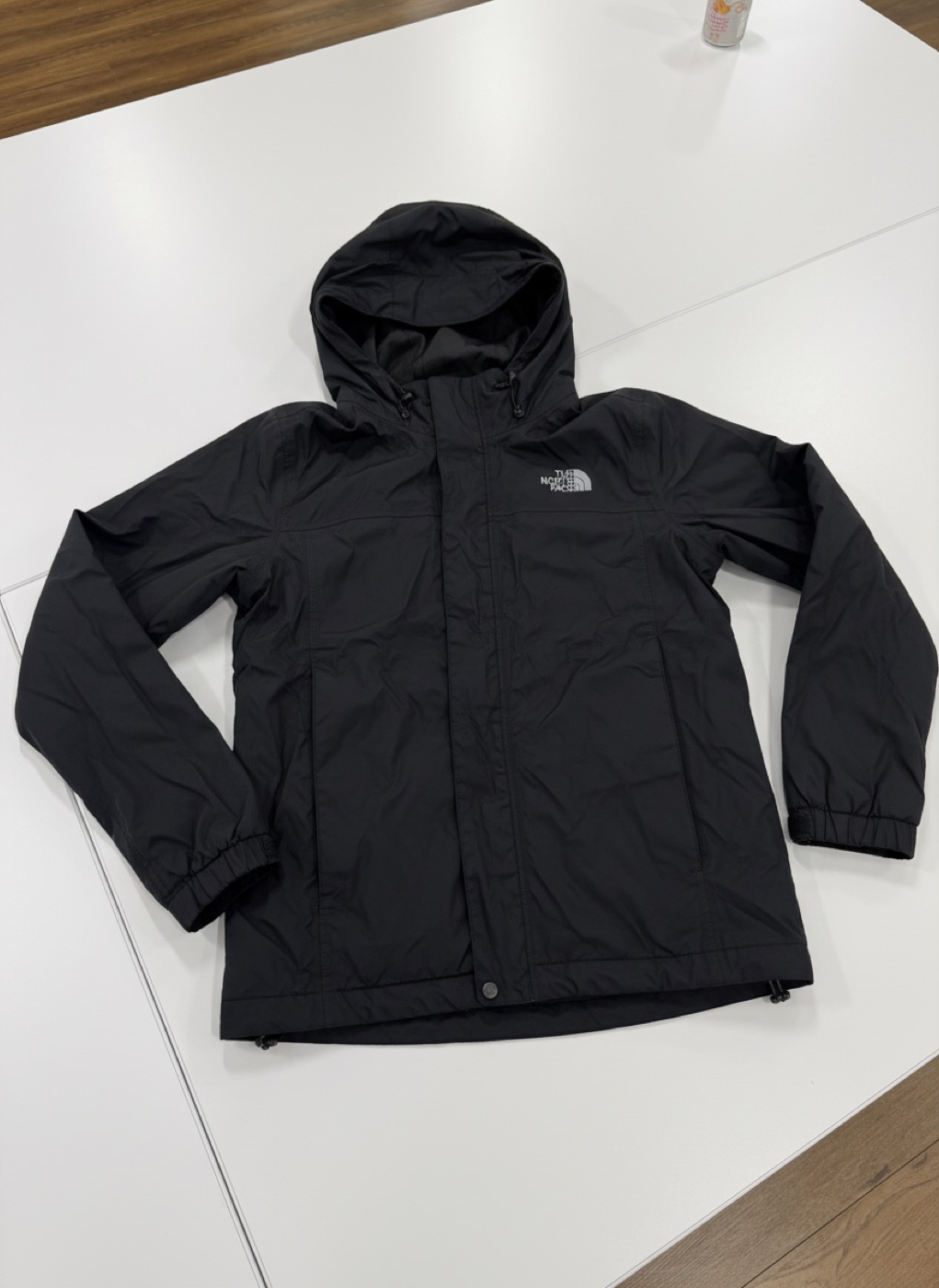
Quick answer
Use wrinkle removal to reduce distracting creases in a garment photo, then compare the texture and construction with the original. The goal is a clearer product image, not a different-looking fabric.
Step by step
Start with the best physical preparation
Straighten the garment and use suitable lighting before photographing it. Keep a sharp original at full resolution. AI retouching cannot reliably reconstruct texture from a blurred or badly exposed image.
Select Just Unwrinkled
Import the original and choose Just Unwrinkled. This is the option for reducing creases without requesting a hanger, model or mannequin presentation. Generate the image, then compare it with the source in the result screen.
Check texture and intentional folds
Inspect ribbing, knit, pleats, seams and printed patterns at full size. Distinguish unwanted shipping creases from folds that communicate fit or design. Avoid a result that makes woven fabric look smooth like plastic.
Keep only a faithful result
Compare color, silhouette and garment condition, then export the image. If a logo, pattern or seam changes, use another result or the original instead of publishing a misleading detail.
Keep the presentation; reduce the creases
For this job, choose Just Unwrinkled instead of Ghost Mannequin. The jacket stays laid out in a flat presentation while the larger creases are softened. Compare the cuffs, zipper and fabric texture at full size. Keep intentional folds and construction details visible.
Before you use the result
Image retouching does not repair the physical garment. Do not hide wear or damage that a buyer should know about, and do not promise that AI preserves every fabric detail automatically.
Explore the app